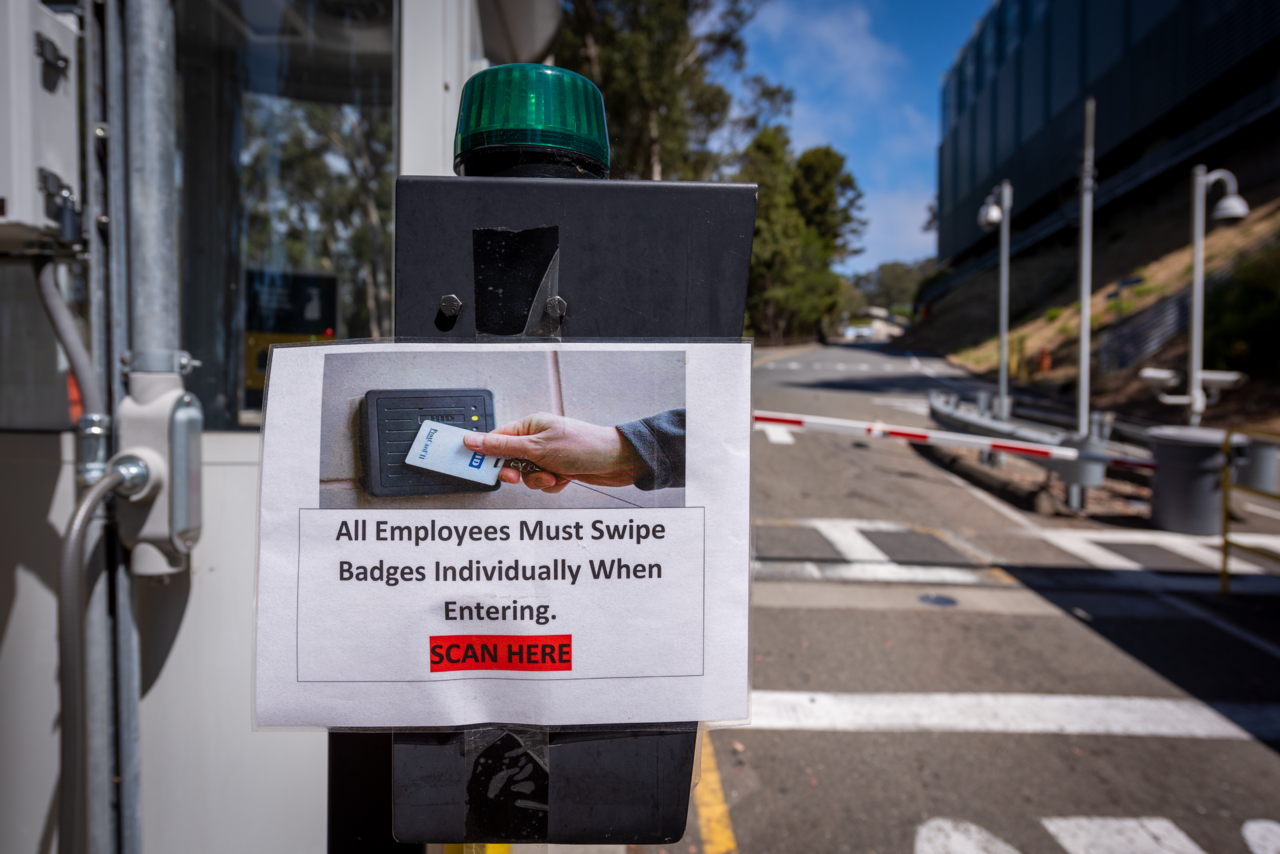
Berkeley Lab Badging Access
Berkeley Lab uses keys or the electronic Access Control System for building or room access. The access control system is used for exterior perimeter doors to most buildings, as well as some individual labs, offices, and equipment. The access system is linked to the Berkeley Lab HR System and is updated with the employee or affiliate’s current appointment status at the Laboratory. If a staff member’s Laboratory appointment end date has expired, their access will be suspended.
Access permission control is decentralized and managed by each Division or major program via Security Access Managers (SAM) Administrators and In-putters. SAMs determine staff access needs and appropriately approve or deny requests for access to each location for which they are an authorizer. This process provides each division or major program the ability to discretely control access permission to its respective area(s).
After-hours Access
Badge Management
The Lab’s self service badge management system allows badge-holders to go online to request additional building access to their badge. The Security & Emergency Services Division has been working on this project for several years as one step in a multi-step plan to improve security and safety at Lab sites.
Visit the badge management system at access.lbl.gov.
What do you want to do?
View my current badge and view the area access on my badge
To view your active badge and area permissions:
- Log in at access.lbl.gov
- Click on your name at the top right of the page
- Click on View Profile
- My Access Cards will display your current badge and its status (active or inactive)
- My Access Areas will display all the permissions you have on your badge.
- The deactivation date on most of your permissions is tied to your GERT expiration date and will automatically update next time you complete the training
Request new area access on my badge
To request access, you will need to log in before following these instructions:
- Select “Area Request”.
- Look up the area you want to access.
- Click “Add” on the right side of the area name.
- You may add multiple areas in a single request by searching for the applicable areas and clicking “Add” for each of them
- Some areas are authorized by multiple divisions and will have a self-service listing for each division. Add just ONE area, and choose the one with the division you work for or that is most applicable for the work you will be doing in this area
- Click “Done” on the top right, and you’ll be directed to the request form.
- Type in your reason for the request in the appropriate field.
- Select “Submit Request” at the top right of the page.
- Your request will be routed to the area’s authorizer. After it has been approved, the access will be automatically added to your badge.
- You can check the status of your requests on the homepage under “My Requests”, which lists all of your requests that have not yet been approved and applied.
If you need sitewide access, please review this list of access areas and determine which, if any, is appropriate for you.
If you do not see the area you are requesting in the self-service list, please email siteaccess@lbl.gov.
Request new area access for someone I supervise
If you are a supervisor, you can request access on behalf of your direct reports:
- Log in at access.lbl.gov
- Click on the 9-square (sometimes colloquially called the “waffle”)
- Click on Identities
- Ensure you are in the “My Identities” section
- If you can’t see which section you’re in, you may need to expand the left menu by clicking on the 3-bar button on the top left of the screen
- “My Identities” contains all people you supervise
- Click on the row of the person for whom you want to request access
- Click on “Access Areas”
- Look up the area for which you want to request access.
- Click “Add” on the right side of the area name.
- You may add multiple areas in a single request by searching for the applicable areas and clicking “Add” for each of them
- Click “Done” on the top right, and you’ll be directed to the request form.
- Type in your reason for the request in the appropriate field.
- Select “Submit Request” at the top right of the page.
- The request will be routed to the area authorizers. After it has been approved, the access will be automatically added to the badge.
- You can check the status of your requests on the homepage under “My Requests”, which lists all of your requests that have not yet been approved and applied.
If you need to request sitewide access, please review this list of access areas and determine which, if any, is appropriate for you.
If you do not see the area you are requesting in the self-service list, please email siteaccess@lbl.gov.
Create a PIN
To set up your PIN, do the following:
- Sign into access.lbl.gov ,https://access.lbl.gov/SAFE
- Click on your name in the upper, right corner and choose “View Profile”
- Click on “My Access Cards” from the list of options to the left of your picture
- Click the checkbox next to the card number and click “Update.” This will create a pop-up.
- From the “Request type” menu in the pop-up, choose “Update PIN”
- Fill in your PIN number (and confirmation) and hit the “SAVE” button on the upper right corner of the pop-up. The pop-up will disappear.
- Click the “SAVE” button on the upper right corner of the self-service screen.
- Sign out by clicking on your name in the upper right corner and choosing “Sign Out”
Additional Information
- If you need sitewide access, please review this list of access areas and determine which, if any, is appropriate for you.
- If you do not see the area you are requesting in the self-service list, please email siteaccess@lbl.gov.
- Additional resources and instructional videos can be found on our new Shared Drive.
- If you are an area authorizer (i.e. a SAM), you have access to the Security Access Managers Resources Google Drive.
- Please email siteaccess@lbl.gov with any questions.